Artificial Intelligence is advancing at an amazing pace. How far are we from being able to create a commercially viable game by simply describing it? The feeling is that a breakthrough is just around the corner!
This quick tutorial will show you how to create a game you can play immediately. All you need is your creativity and your favorite AI assistant (chatbot).
By continuing with this tutorial, you agree to our Terms and Privacy Policy.
Copy the following game description:
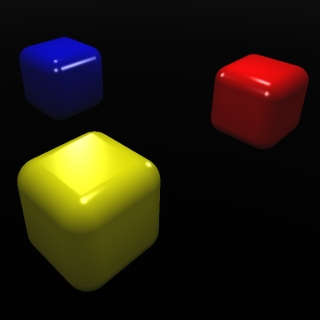
In a dark environment, create 3 cubes (red, yellow, blue), with rounded corners, arranged in a triangle, around the world center. Let me orbit the view around the scene. When I tap a cube, make it shake for a second like a spring.
Copied!
Paste the description into the upper window of the Vibe2Game engine.
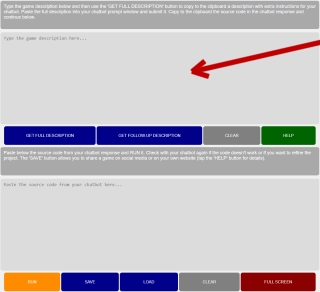
Tap the 'GET FULL DESCRIPTION' button. This copies back to your clipboard the game description with extra instructions for the chatbot.
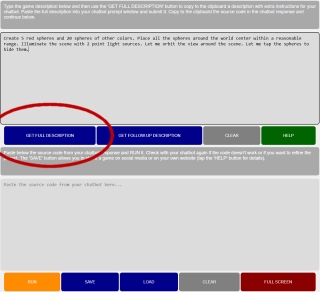
Switch to your favorite chatbot interface, paste the content of the clipboard into the chatbot prompt window and submit it.
In the chatbot response, there should be source code. Copy it, switch back to the game engine and paste the source code into the lower window.
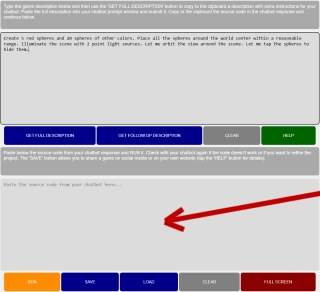
Tap the 'RUN' button to see if the game works and matches the description.
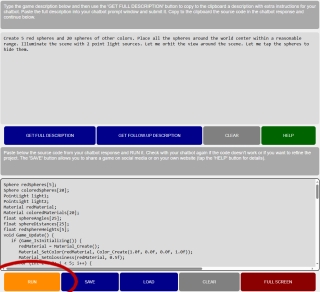
Since this is an extremely simple project, any major chatbot available today should be able to produce the correct source code for it.
If your chatbot succeeded and you want to find out how far it can go, copy the follow-up description below, switch back to your chatbot and submit it.
Randomize a 3-step sequence (like blue, blue, red) and make the cubes shake in the same order, so that I can memorize the sequence. Let me repeat the same sequence by tapping the cubes. Show the shaking when I tap a cube. If my sequence is correct, randomize a new sequence with more steps. If my sequence is wrong, display 'Game Over' on the screen.
Copied!
Again, grab the source code from the chatbot response, paste it into the engine's code window, making sure to fully replace the previous code and tap the 'RUN' button. Tip: tap the 'CLEAR' button before pasting.
Keep adding features to the game with more follow-up prompts. For example:
Add a delay after I have completed my sequence, before starting yours. During the delay, display 'Great!', in green.
Copied!
In theory, any kind of game logic should be possible with refined follow-up descriptions alone.
LIMITATIONS
In practice, eventually, the game logic may become too sophisticated for the chatbot to handle or for the game engine to run at a decent frame rate.
Still, since chatbots, AI assistants and the Vibe2Game engine improve constantly, what doesn't work today may work, like a dream, tomorrow!
KEEP EXPERIMENTING! WE DO!
Follow us on X for the latest game experiments, tips and engine updates!
SHARING A GAME
If you end up with a successful game experiment that you would like to share, tap the 'SAVE' button to generate an image from the current source code and save it to your device.
The image should look like the example below.

You can then share this image the same way you share any other image.
Others, after saving the image to their device, will then be able to use the 'LOAD' button at Vibe2Game.com to read the source code in the image and examine, edit and run it.
Tip: the 'SAVE' and 'LOAD' buttons are also great to archive your game experiments for later use.
MORE ABOUT FOLLOW-UP PROMPTS
To modify an existing game (e.g. an image received from a friend) load it in the Vibe2Game engine, describe the changes you want in the upper input area and tap the 'GET FOLLOW UP DESCRIPTION' button.
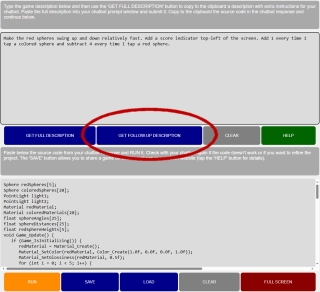
This will include, to the instructions for your chatbot, the existing source code in addition to the usual extra information.
As before, submit the instructions to the chatbot, copy the source code in the chatbot response, paste it into the Vibe2Game engine code window and tap 'RUN'.
TIPS & TRICKS
1. If you are starting a project from scratch, start from the main game logic, ignoring details like in-game/success/game-over messages and using simple shapes as placeholders. This will keep the source code generated by the chatbot small and quick to process with follow-up prompts.
2. In follow-up prompts, request one single change at a time. Powerful chatbots may be able to process multiple complex changes at once, but, in general, small steps guarantee full control and bug-free improvements.
3. If the source code fails completely to run in the engine (or it runs but not as expected), review your prompt to ensure it is as clear and concise as possible Then submit it again. Do use the 'GET FOLLOW UP DESCRIPTION' button for this!
IMPORTANT: when you press the 'GET FOLLOW UP DESCRIPTION' button, the code that is included to the prompt is the one you see in the code window. Keep it in mind when you just pasted into the code window code that fails and you want to re-submit the prompt with the last working code in it. This is another way the 'SAVE' and 'LOAD' buttons can really help! Every time you make a successful step, save it.
ANY LANGUAGE!
Game descriptions can be in any language supported by your chatbot.
Also, since the Vibe2Game engine supports text in any language, you can specify, in the game description, the language to use for your game user interface!
SHARE THIS TUTORIAL
FOLLOW US ON X!
For the latest on this project, free-to-use game examples, game description tips and much more!
Copyright A Trillion Games Ltd - Company No: 08057137 - Registered in England and Wales
Games - Engine - API Reference - Legal